 Brainerce Help
Brands
Assign the manufacturer or label to each product, which powers brand filters on the storefront and per-brand reporting in analytics.
A brand is the manufacturer or label on the product: Anker, Apple, Nike, or your own house label. Assigning brands lets customers filter by brand ("show me everything from Anker"), and each brand gets its own landing page in your storefront.
Rules of thumb
- Assign one brand per product. The field accepts several, because it is a multi-select with no cap, but multiple brands on one product muddy your brand filters and brand reports, so pick the one that owns the product.
- If your store sells only your own products, set a single house brand or leave the field blank.
- Brands are flat (no hierarchy). Unlike categories, there is no parent/child relationship: a brand is just a name, slug, logo, and description.
The brands list
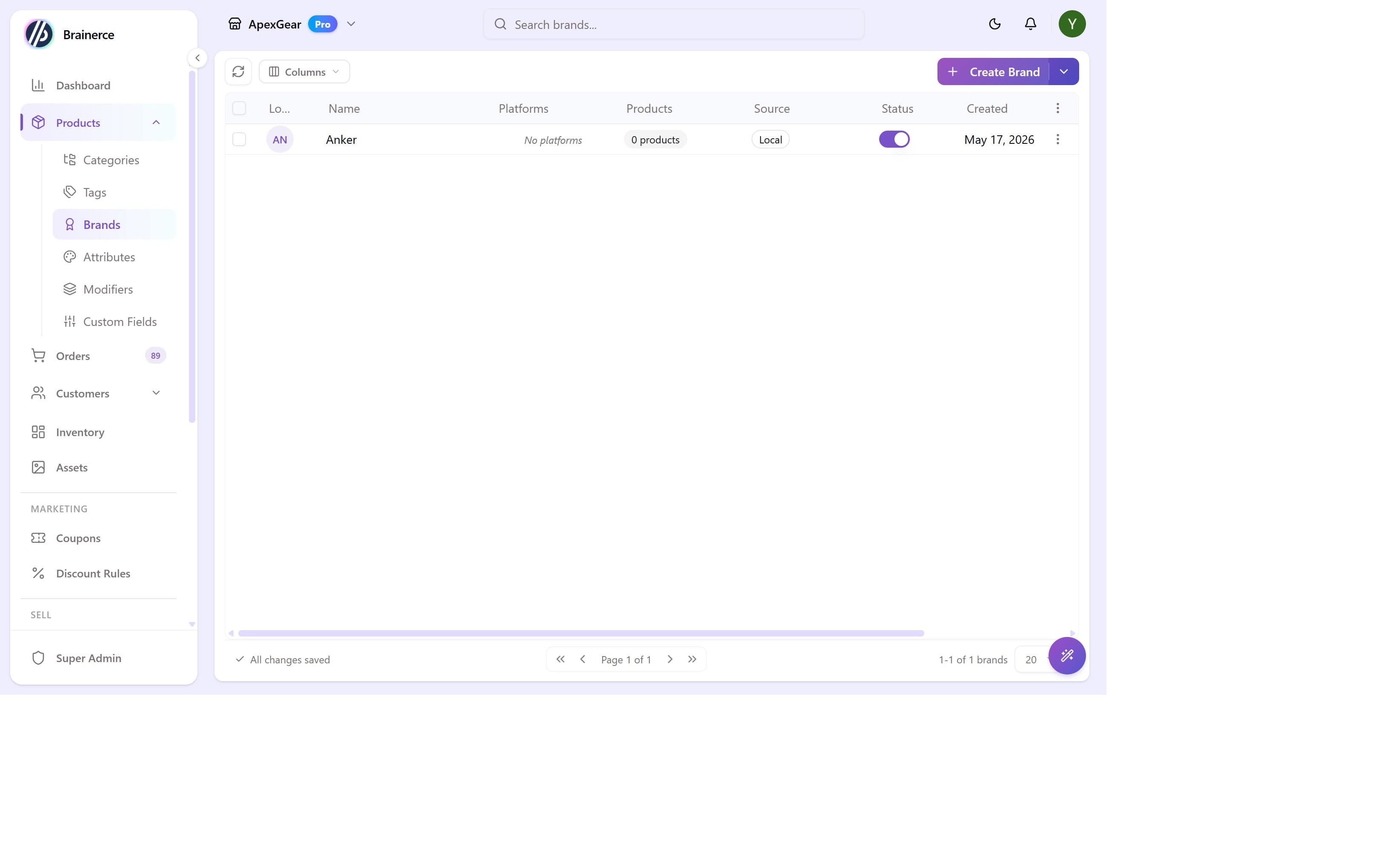
Go to Products → Brands to see all brands with their logo thumbnail, name, which platforms they're published to, how many products use them, and status.
Don't see it in the sidebar? Brands is a module, and it can be switched off for a store; some store types start with it off. Turn it back on under Settings → Modules.
Creating a brand
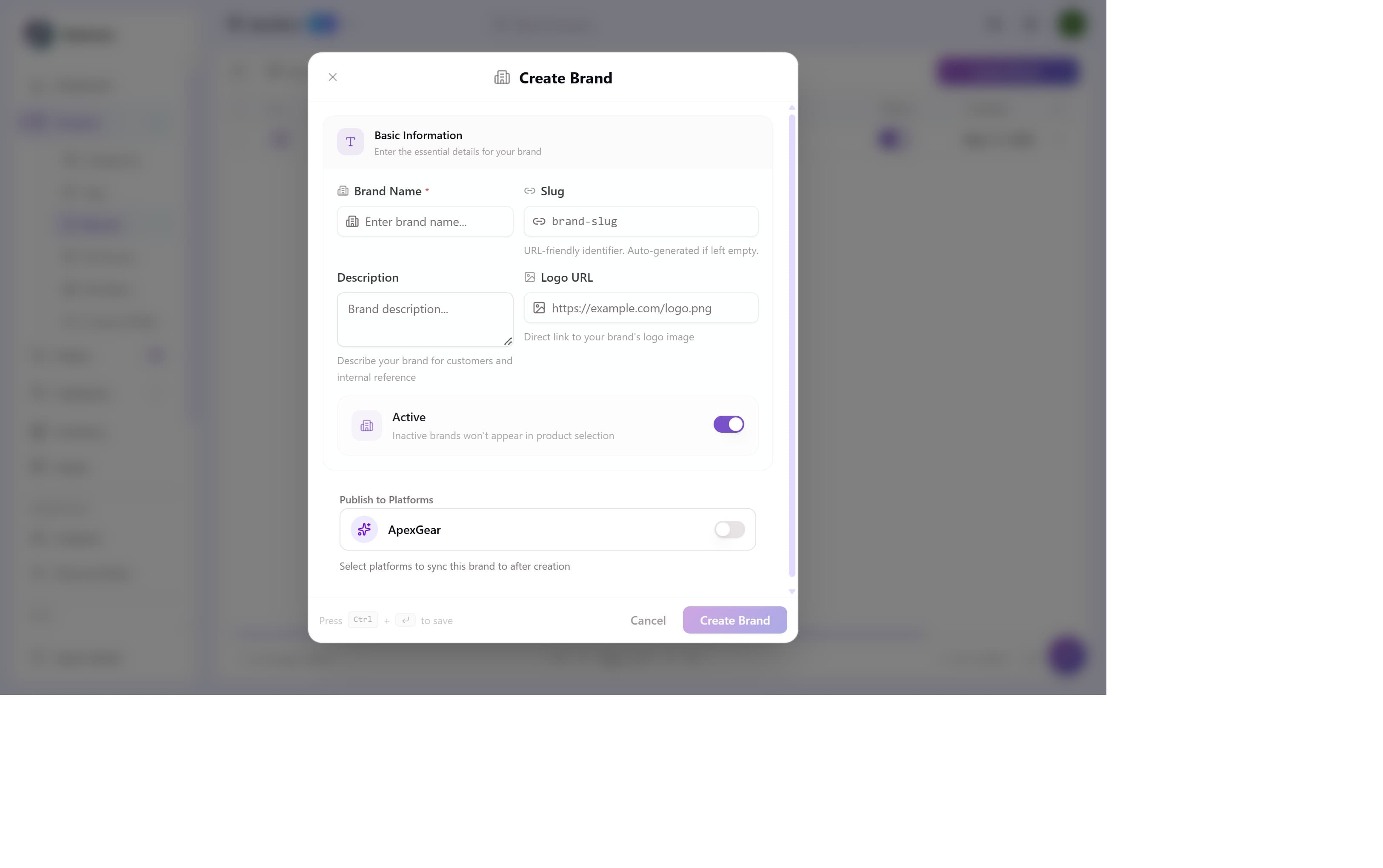
Click Create Brand. The dialog has these fields:
| Field | What it does |
|---|---|
| Brand Name | Required. Shown to customers on product pages and brand filters. |
| Slug | URL-friendly identifier auto-generated from the name (anker → /brands/anker). You can edit it before saving, and it can be changed at any time. Renaming a brand without setting a slug regenerates it from the new name, which changes the brand URL, so set the slug explicitly if you need it to stay put. |
| Description | Optional. Used as the meta description for the brand landing page and shown in the brand header. |
| Logo URL | A direct URL to the brand logo image (not a file upload; host the image on your CDN or any public URL). Displayed in the brand landing page header and in storefront brand filters. |
| Active | Toggle OFF to hide the brand without deleting it. Inactive brands don't appear in the product editor dropdown. |
| Publish to Platforms | Syncs the brand to connected sales channels (Shopify, etc.). Toggle on per channel. |
Click Create Brand and the brand immediately appears in the Brand dropdown when editing any product.
Brand landing pages
Each brand automatically gets a storefront page at /brands/<slug> that lists all products assigned to it, using the logo and description you provided. No additional configuration needed.
What's next?
- Categories & tags show how to organize your catalog hierarchy.
- Attributes cover Size, Color, Material and other variant-generating properties.
- Add a product to assign a brand during product creation in the Organization panel.
SEO Autopilot
Find and fix the SEO problems costing your store search traffic, across your whole catalog, instead of auditing products one at a time.
Kits (sell several products as one)
Create a kit that sells several of your products together as a single item, with a price and a sale price you set like any other product, and stock always worked out from the contents.